In Microsoft Outlook 2007, from the Tools menu, select Account Settings.

On the E-mail tab, click New.

Select Microsoft Exchange, POP3, IMAP, or HTTP and click Next.

Check Manually configure server settings or additional server types and click Next.

Select Internet E-mail and click Next.

- Your Name: your name
- Email Address: the email address the messages will be sent from
- Account Type: POP3
- Incoming Mail Server: mail.domain.com ( replace domain.com with your actual domain name )
- Outgoing Mail server: mail.domain.com ( replace domain.com with your actual domain name )
- User Name: the full email address Ex: user@domain.com
- Password: the password for the email address
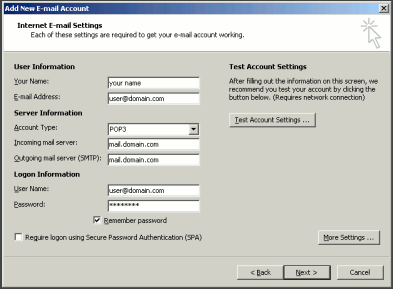
Click More Settings.
On the Outgoing Server tab, check My outgoing server (SMTP) requires authentication.
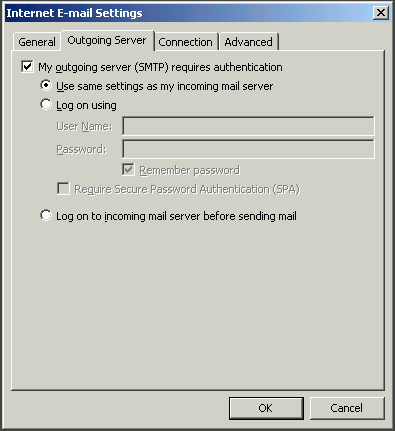
Select Use the same settings as my incoming mail server .
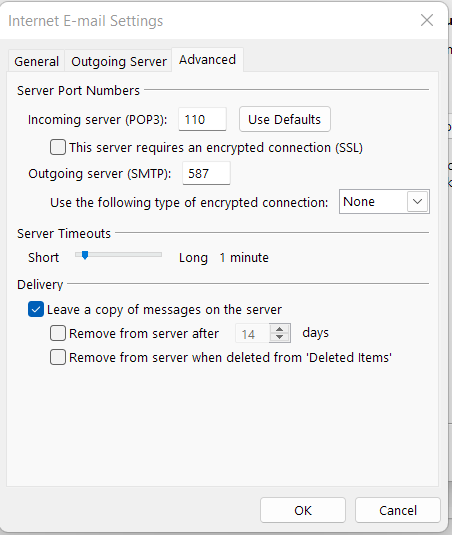
Select Advanced and check the configurations then click OK
Click Test Account Settings to verify everything is configured correctly.
Click Next and then click Finish.